
When browsing your personal video library, having dozens of individual cards for a single 16-episode season clutters your dashboard and makes navigation cumbersome.
In UFlix, you can organize an entire TV show season into a single card and configure backup streaming links to keep playback seamless in just 3 quick steps.
1. How to Add Multiple Episodes
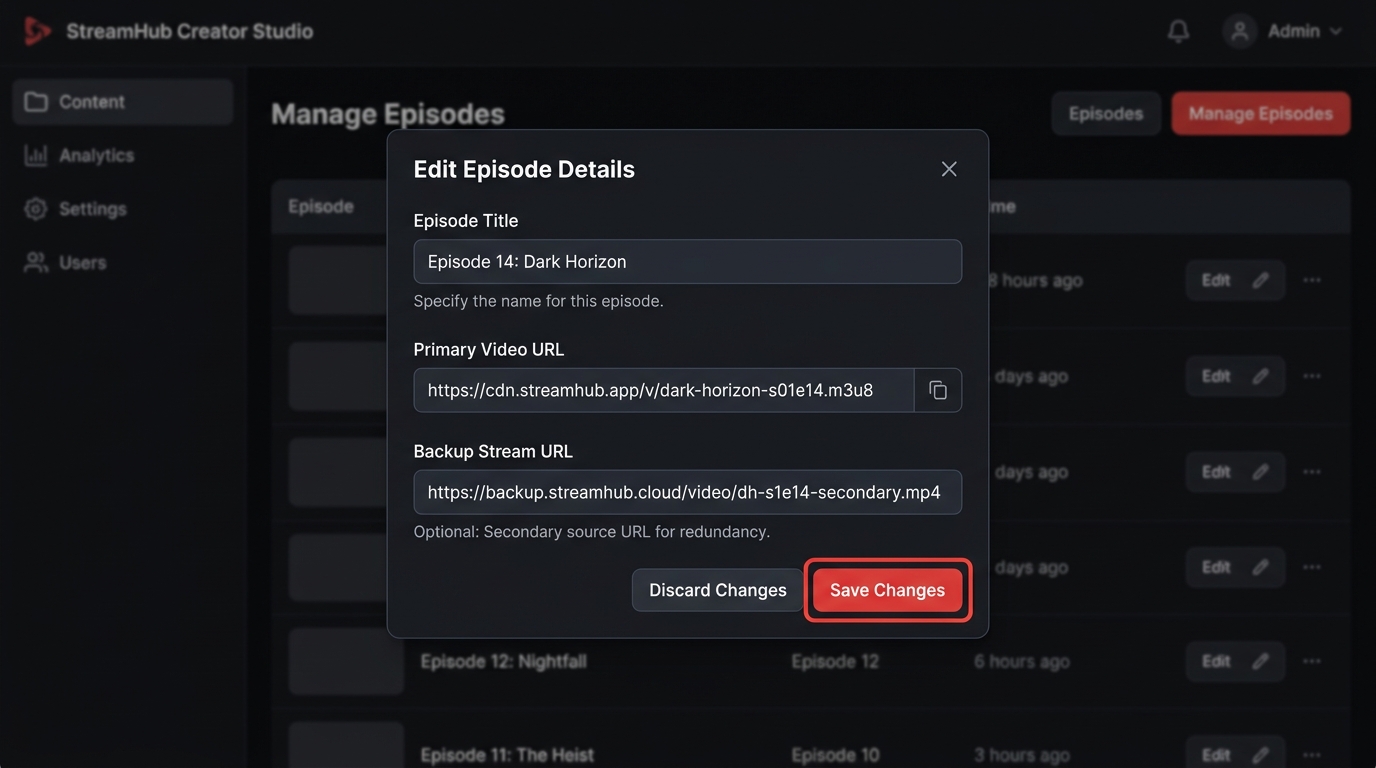
- Click on the video card you want to configure ➡️ Click Edit Video.
- Scroll down to the Episodes section and click + Add Episode.
- Enter the Episode Title (e.g.,
EP 01: The Beginning). - Paste the video stream URL into the Primary Video URL field.
- Click Save Changes.
Repeat this for all episodes. Your video card will instantly serve as a unified hub for the entire series without cluttering your library.
2. Setting Up Backup Stream URLs
A common challenge with external streaming links (M3U8 / MP4) is host downtime or temporary throttling. UFlix includes built-in support for redundant backup links.
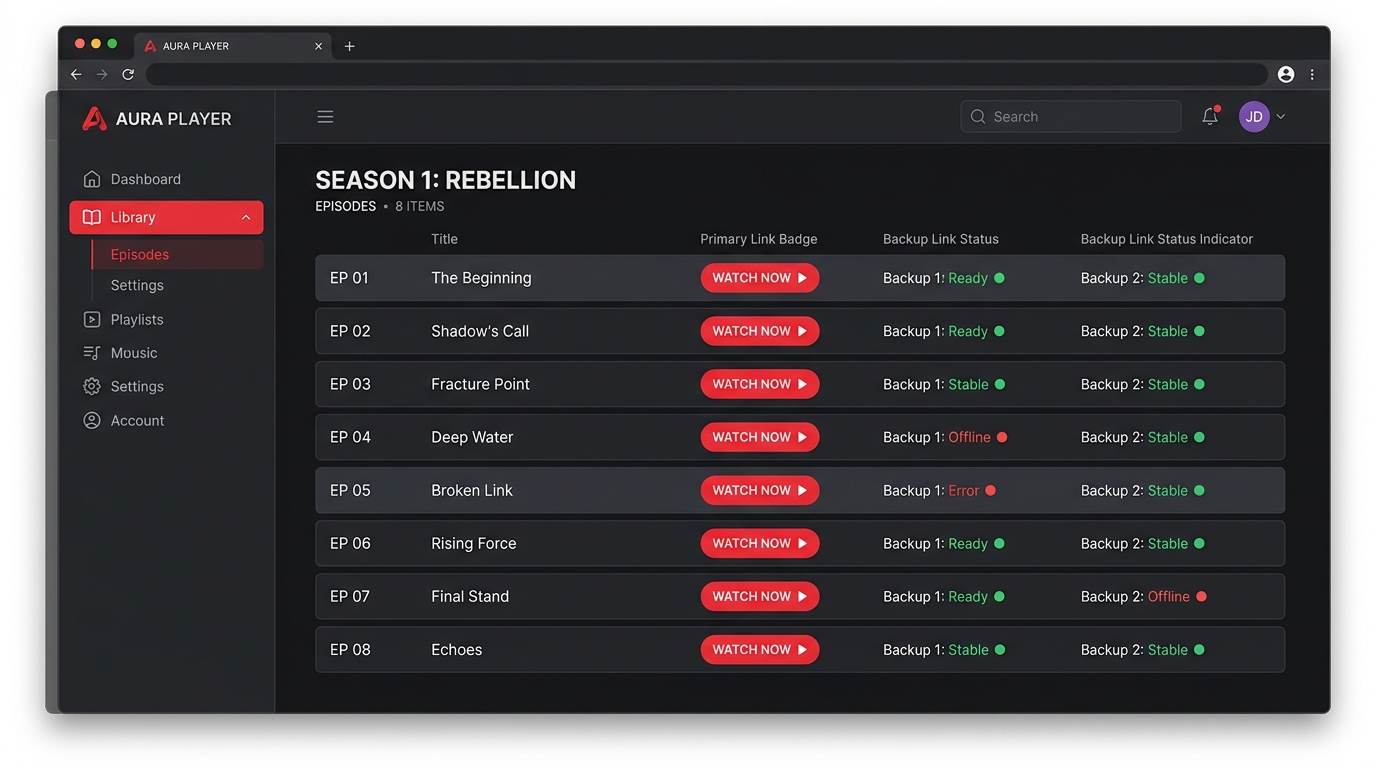
- In the episode editor, enter an alternative streaming source in the Backup Stream URL field.
- If the primary link fails to load or experiences heavy buffering, you can immediately switch to the backup stream without needing to find a new URL manually.
3. The Playback Experience (Episode Drawer)
When playing any multi-episode series, UFlix automatically enables the Episode Drawer on the right side of the screen.
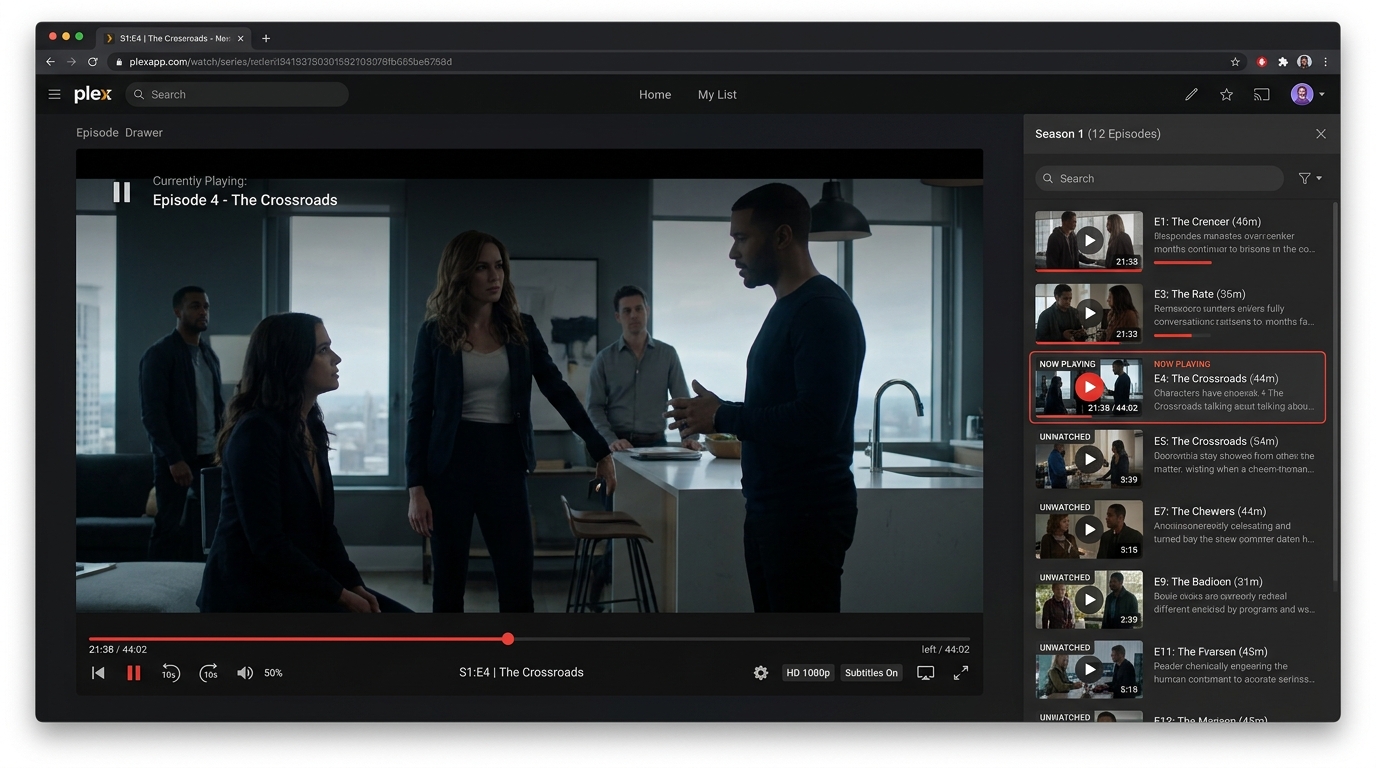
- Switch to the next episode seamlessly without navigating back to the homepage.
- Watch progress, resume points, and playback timestamps are tracked independently for every individual episode.
💡 Quick Summary
- Group Episodes: Click Edit Video ➡️ + Add Episode ➡️ Add title and stream URL.
- Add Backup Link: Provide an alternative source in Backup Stream URL for reliability.
- Stream Seamlessly: Switch between episodes directly using the player's Episode Drawer.
Take a few minutes to organize your favorite series and anime today for a much cleaner, premium streaming experience!