
Share specific movies or personal clips with your friends without exposing your entire library. Here is how to use Public and Private permissions in UFlix.
1. Why Use Sharing Permissions?
When you want to share a movie or vlog with a friend, you shouldn't have to upload massive files to Google Drive or compress them for chat apps. UFlix lets you send a direct streaming link. However, to prevent others from seeing everything in your library (like family clips or secret playlists), UFlix gives you full control over which videos are Public and which remain Private.
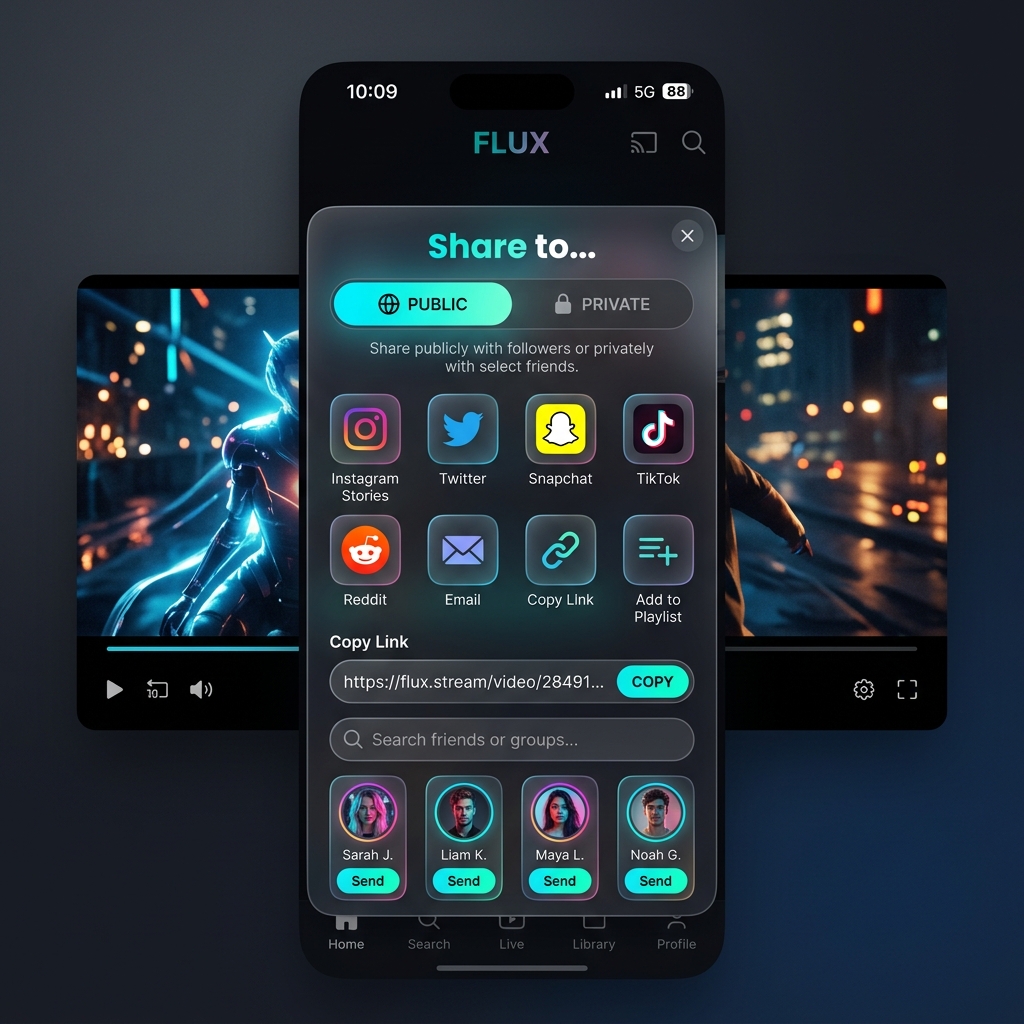
2. Managing Permissions (Public vs Private)
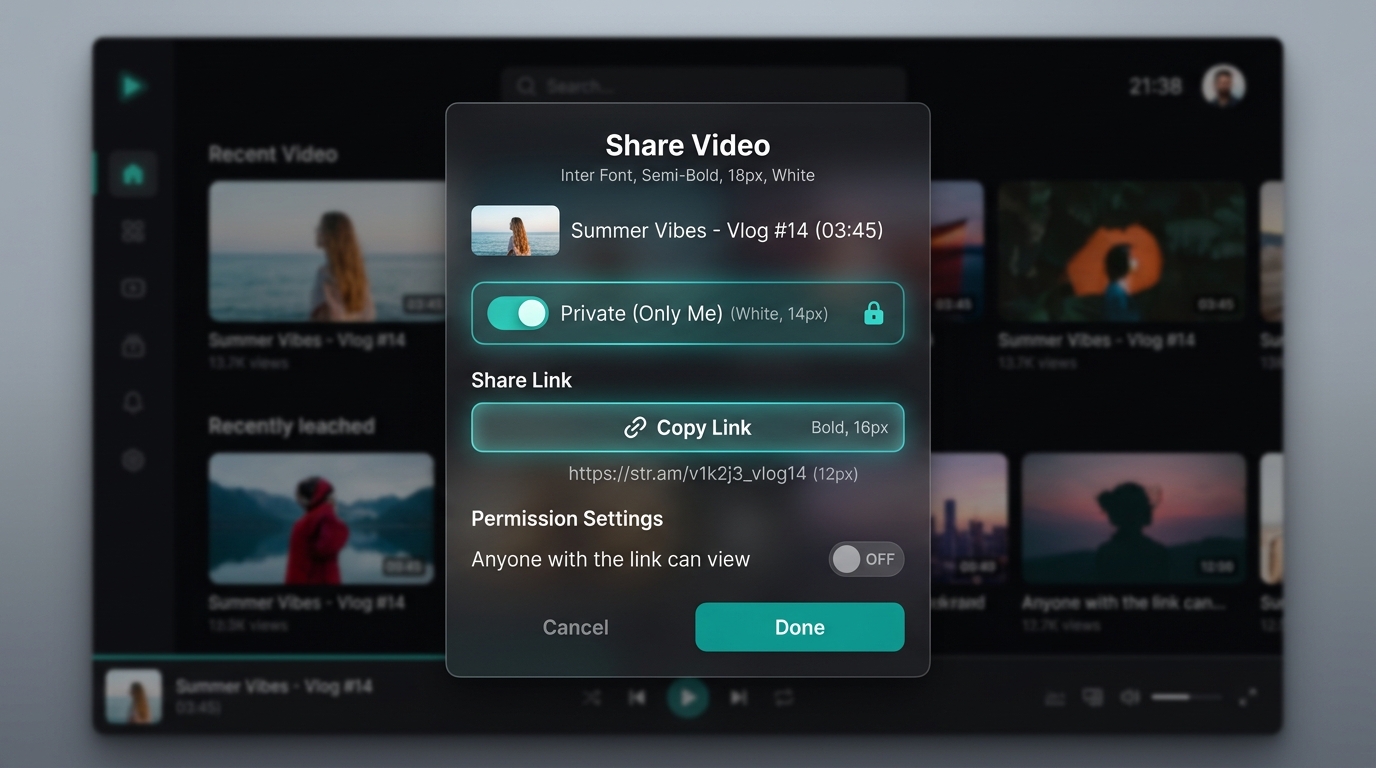
Private (Only you can watch)
- By default, every video you import into UFlix is set to
Private. - In this state, even if someone gets the link, they will see an "Access Denied" message.
- Best for personal videos and clips you aren't ready to show anyone else.
Public (Anyone with the link can watch)
- Go to the Edit mode of the video you want to share.
- Toggle the permission switch to Public.
- Click the Copy Link button and send it to your friends.
- They can click the link and instantly stream the video in their browser!
Revoking Access
- Once your friends have finished watching, simply toggle the switch back to
Private. - The previously shared link will immediately become invalid.
3. Share Your First Link
Next time you have a movie recommendation, try changing its status to Public and sharing the UFlix link directly. It's much faster and more convenient than sending files!